How to use
Share a timer
Start a shared session from the Timerinator desktop app so viewers and co-presenters can follow the live timer from another device.
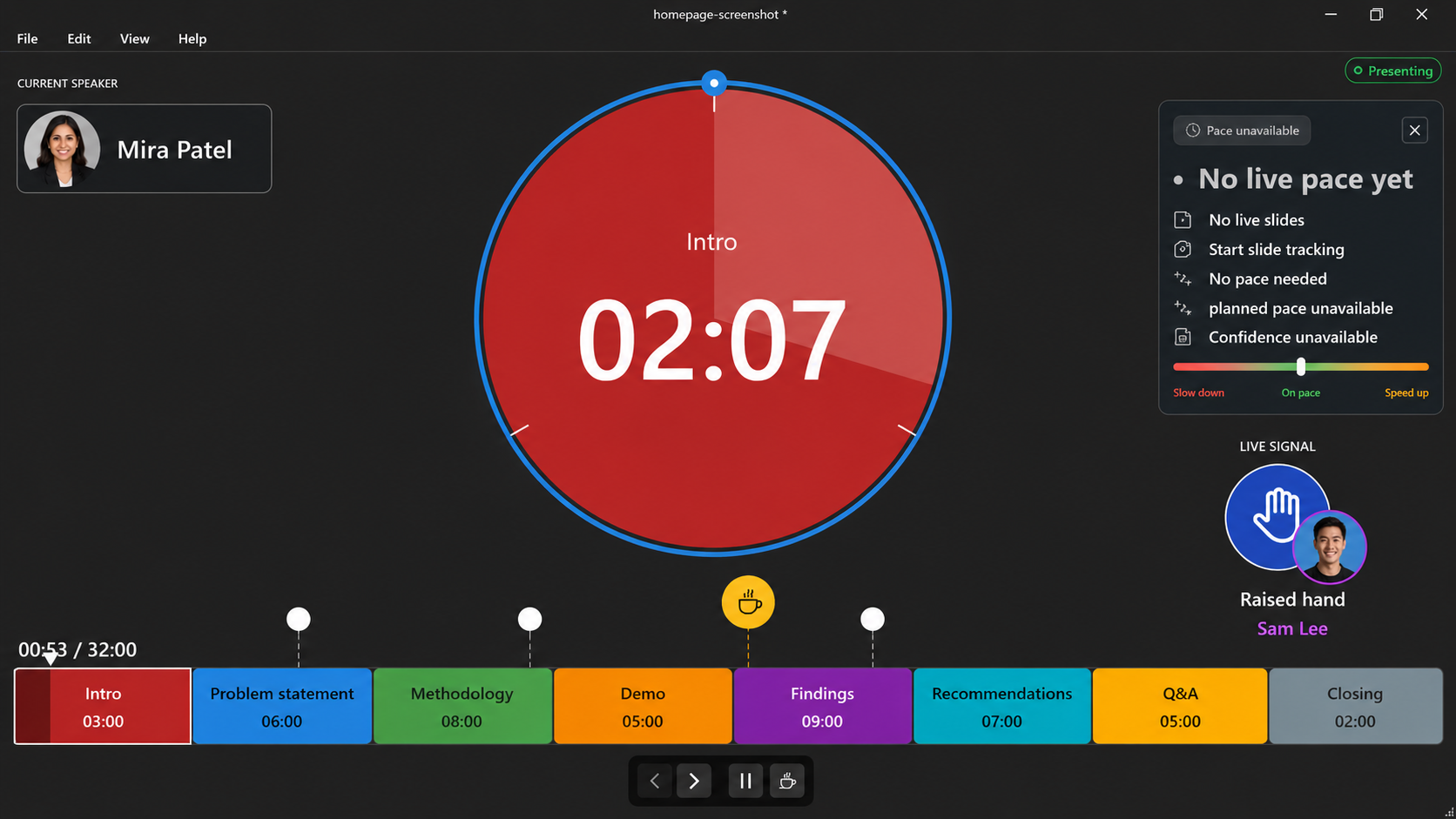
Open the timer you want to share
Open a standalone timer or a PowerPoint timer in the desktop app. If you are using PowerPoint, open the deck on the presenting computer too.
Review speaker details
Add or update speakers before sharing if co-presenters need their own links, initials, colors, avatars, or slide-control handoff.
Open the sharing dialog
Choose File > Sharing. When you are not presenting, the toolbar share button opens the same sharing flow.
Start sharing
Choose Start sharing. Timerinator connects to the hosted relay and creates a private host session, a participant code, and speaker links when speakers are available.
Send participant links
Send the participant link or code to people who only need to watch the timer. They can join from the browser at Connect to shared timer.
Send speaker links
Send each co-presenter their own speaker link. Speaker links identify who connected, who sent a signal, and who can control slides when they are the active speaker.
Monitor connected people
Keep the host timer open while sharing. The app shows sharing state and connected user count so you know whether people are actually attached to the session.
Stop sharing when done
Stop sharing after the session so old links no longer point to a live timer.