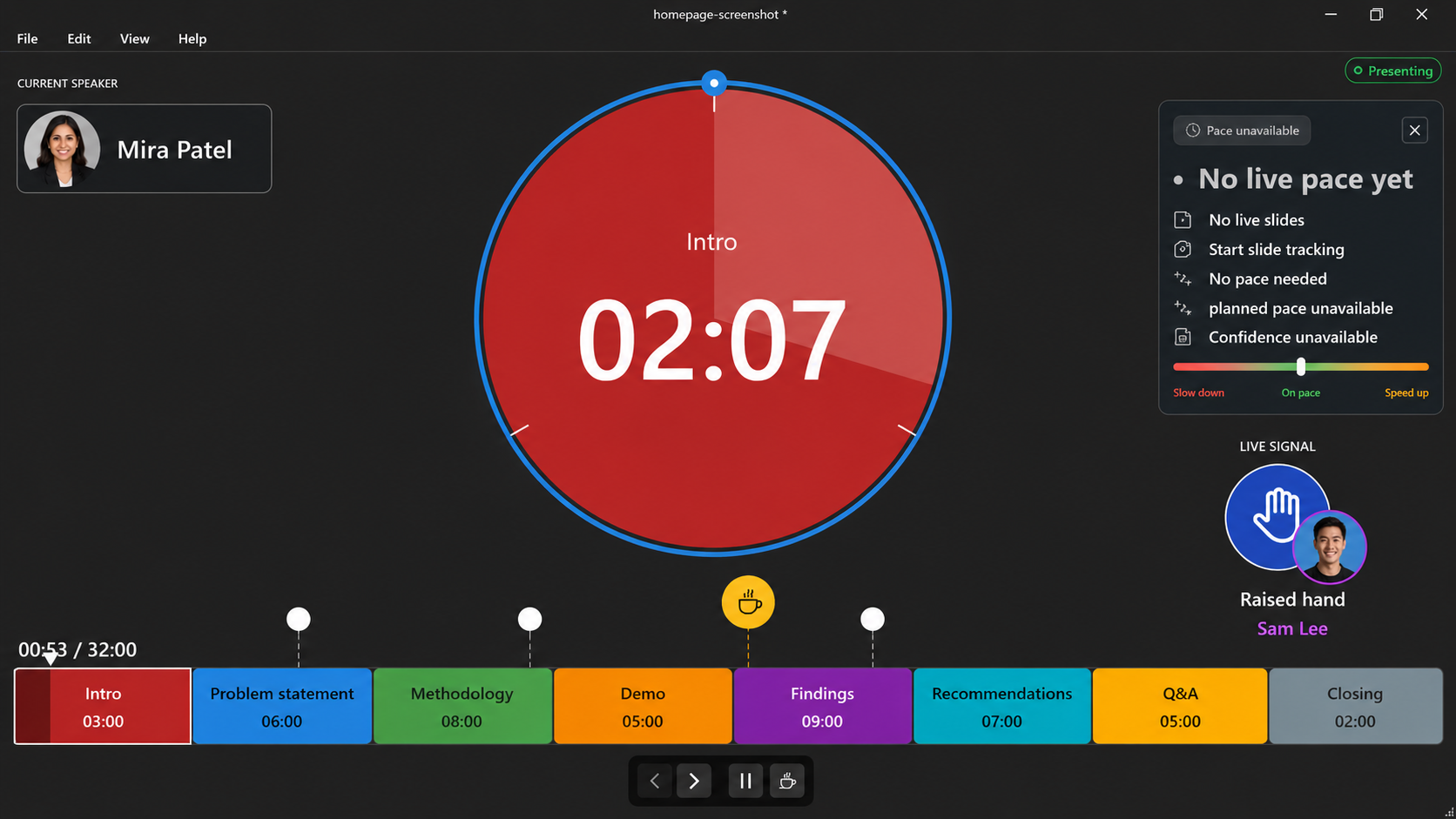
How to use
Connect to a shared timer
Join a shared Timerinator session from the desktop app when you want the full app experience, or from the browser when you just need the live timer.
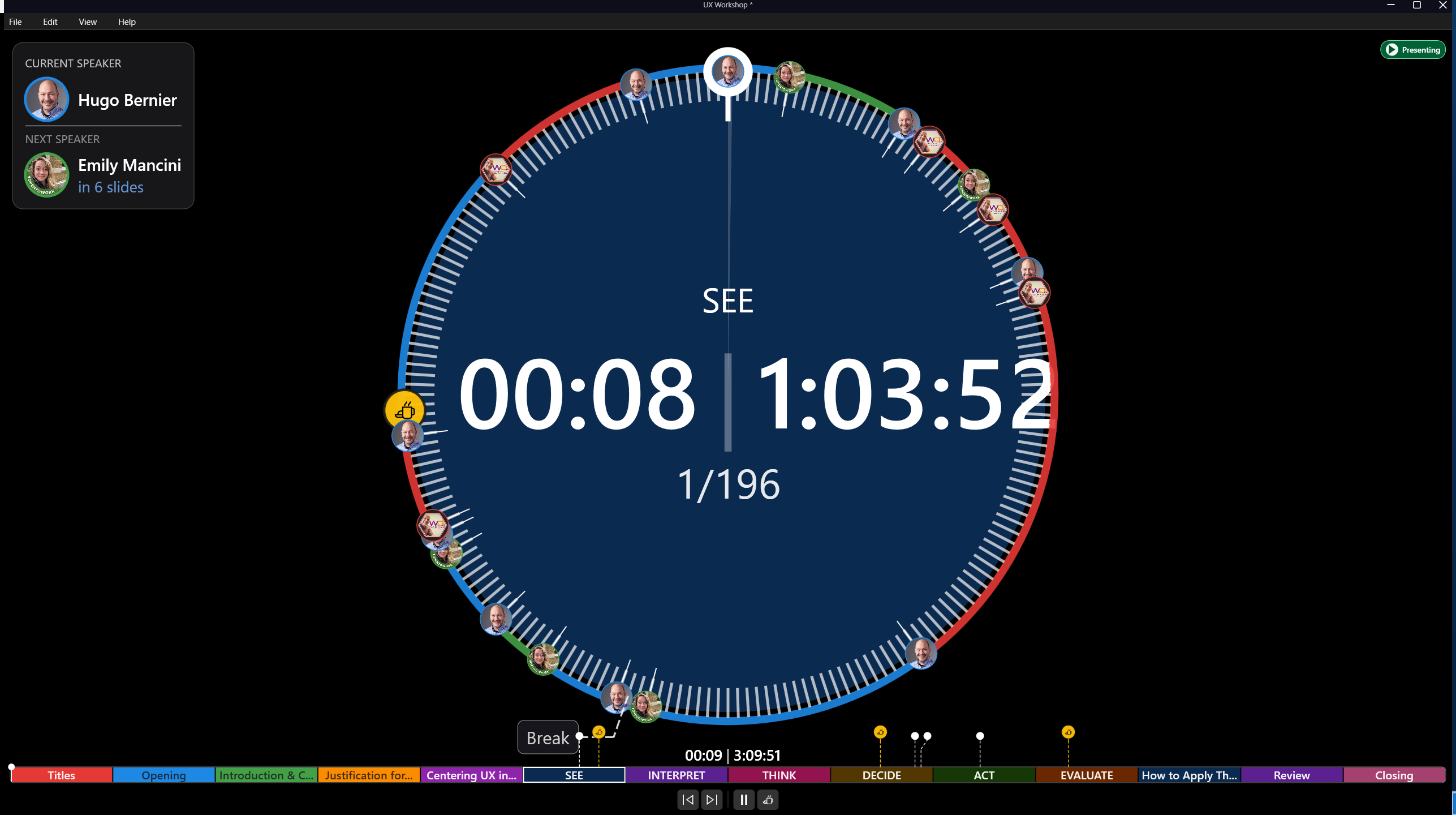
Connect from the desktop app
Get the share code or speaker link
Ask the host for the participant code, participant link, or your personal speaker link.
Open Connect in Timerinator
Open the Timerinator desktop app and choose File > Connect to shared timer.
Paste the code or link
Paste the share code or full link into the connection box. Timerinator normalizes the value, so either format works.
Choose Connect
Connect to the session. If you used a speaker link, Timerinator identifies you as that speaker and enables the controls available to you.
Keep the app open
Leave the connected timer open during the session so it can receive live updates and send presenter signals.
Connect from the web
Open the link from the host
Open the participant or speaker link in a browser. If you only have a code, go to timerinator.net/connect.
Enter the share code
Type or paste the code, then connect. Speaker links can also open the connected view directly.
Watch the live timer
The browser view follows the host timer and shows the current timing state, speaker context, and slide position when available.
Use speaker controls when available
If your link is a speaker link, use presenter signals and slide controls when the host has granted those controls through the live session.