Zoom into the screen
Magnify the part of the desktop that matters, then move through the content while your audience can actually see what you are pointing at.
Zoom and annotate live
/zoom-in-ay-ter/ noun.
A Windows presentation utility for zooming on the screen, drawing annotations, and calling out details while everyone else pretends they are paying attention to your demo.
Remember: when presenting over a video share, apps like Microsoft Teams may drop your share frame rate down to 3 FPS (frames per second). You frantically circling your mouse over an area may not even be visible to your audience. Also, when you say "here", your audience may not be aware of what you're talking about. Instead, highlight the area you want your audience to focus on.
Features
Magnify the part of the desktop that matters, then move through the content while your audience can actually see what you are pointing at.
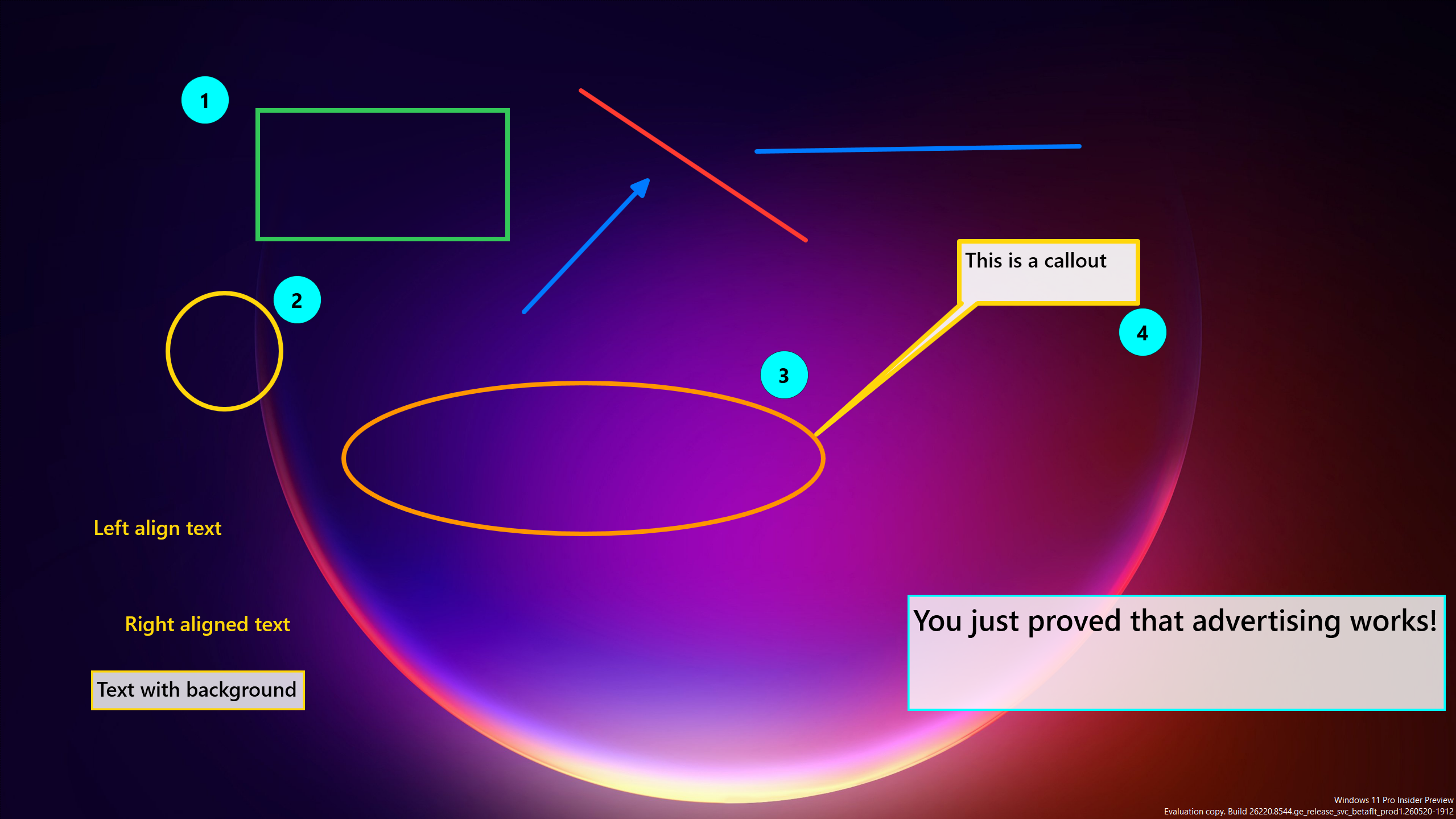
Draw, highlight, point, blur, and add callouts while you present. The audience follows the explanation without you asking them to squint at pixel-sized evidence.
If you are allergic to shortcut keys, use the optional Stream Deck plugin for zoom, annotation, mode, color, and tool actions.
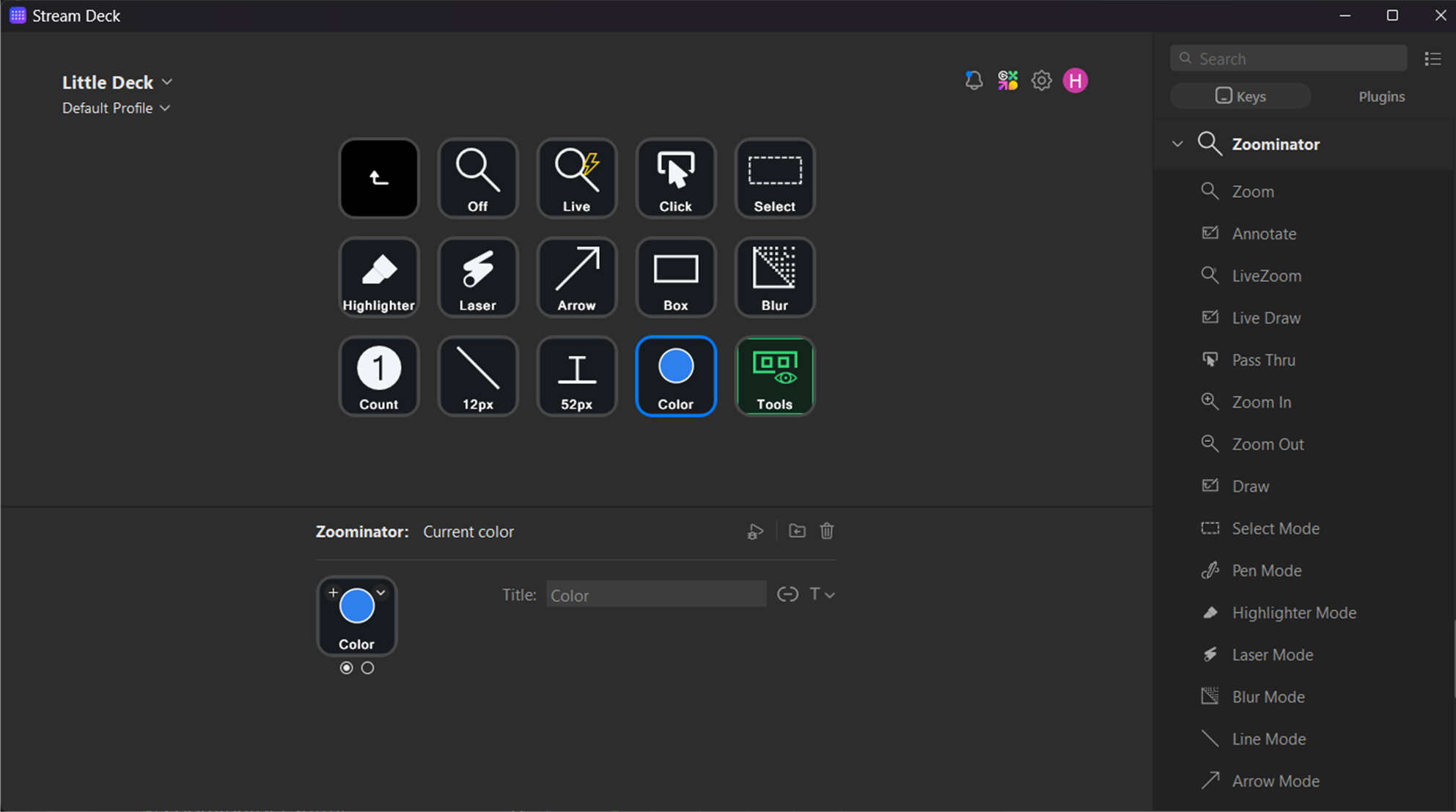
Share and record your screen without letting anyone know that you don't know the shortcut keys by heart.
You can't see it.

Redact confidential information on screen and pretend that you work for a dubious government agency! Blur parts of the screen while presenting and hide the names of your unnamed co-conspirators.
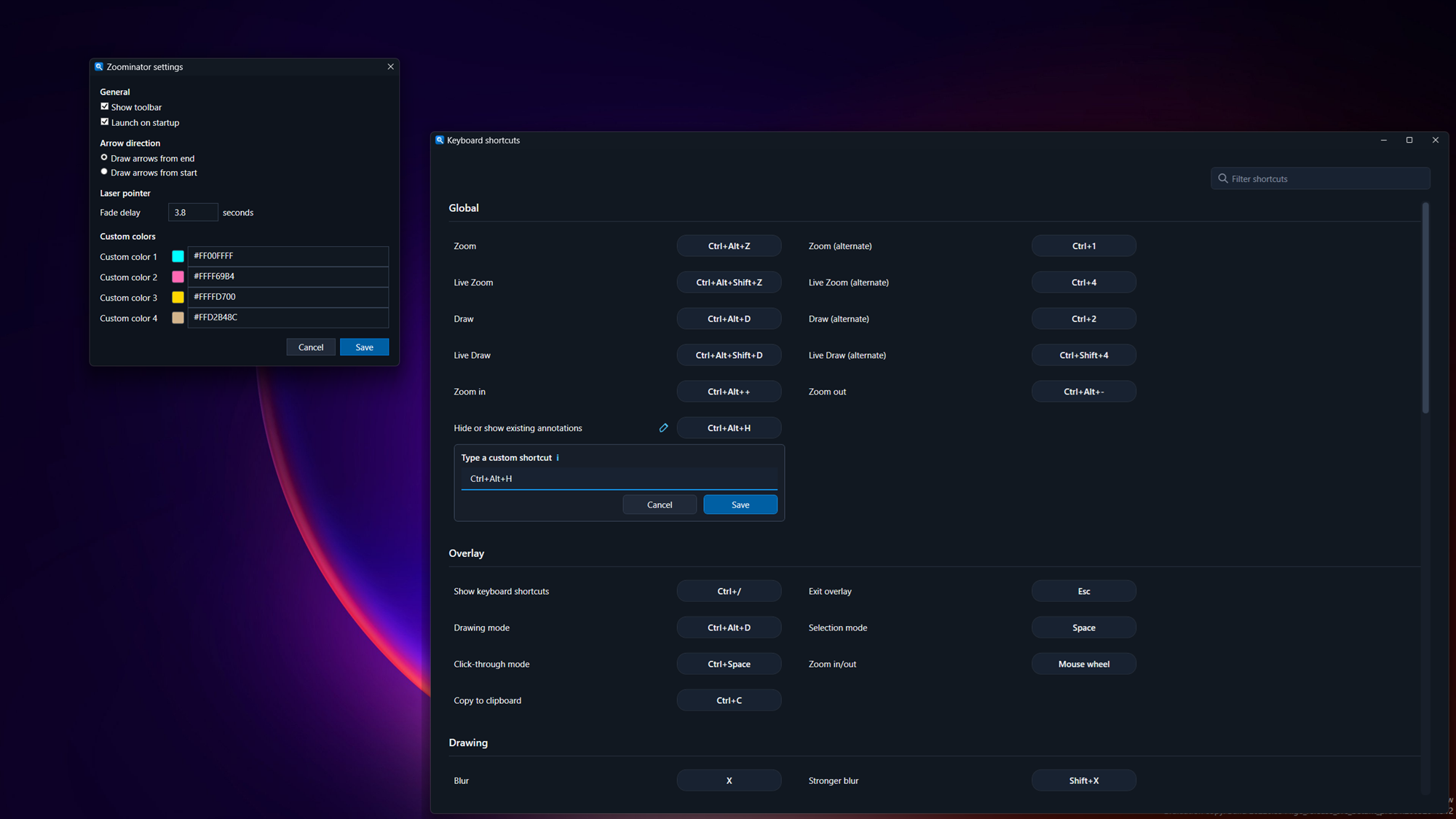
Customize shortcut keys, pen colors, line thickness, font sizes, and animation timings.
You can even pretend that this text says whatever you want it to say.
Pass-through mode lets you interact with apps when annotations are on.
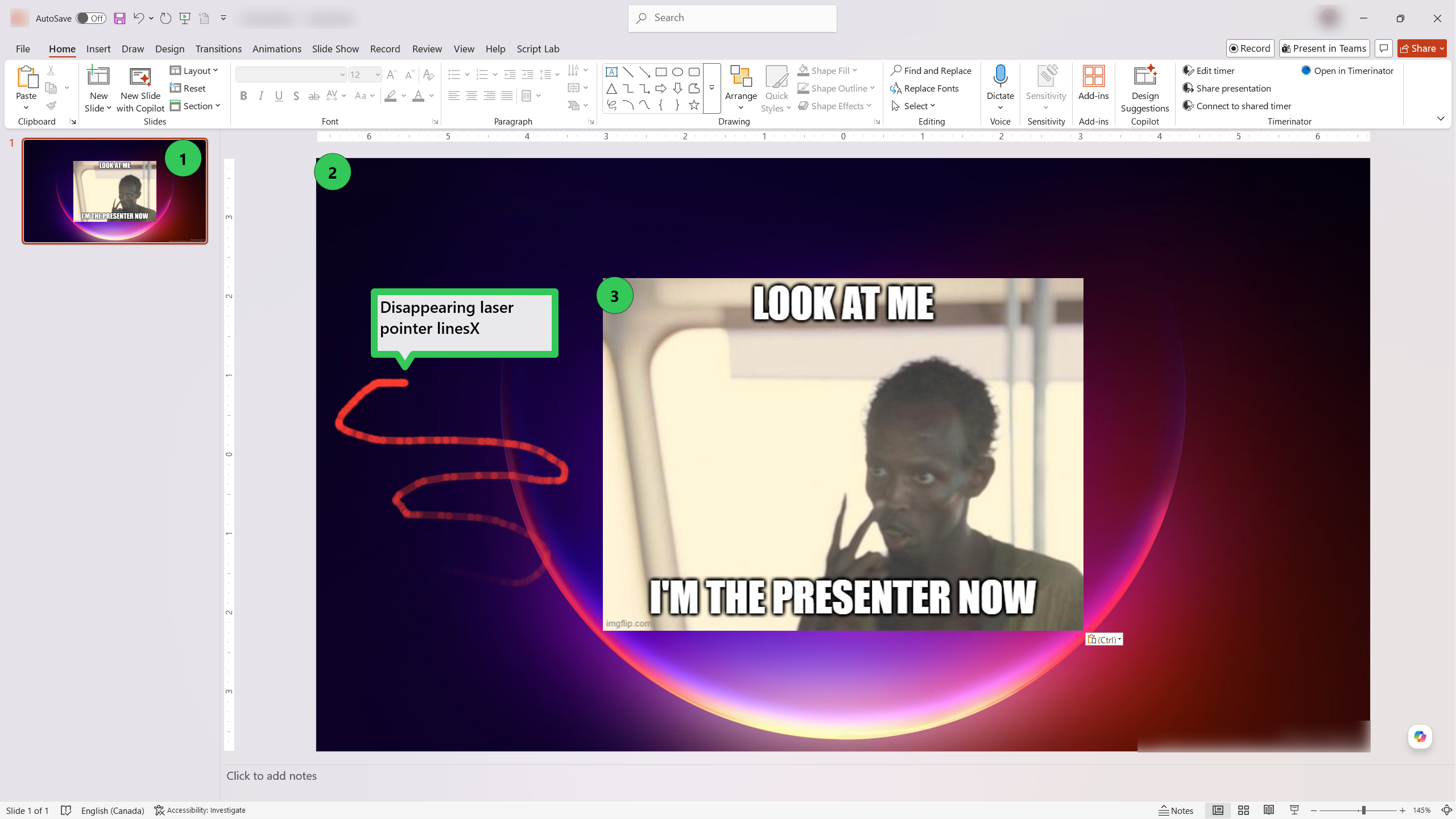
Laser pointer mode, for when your audience are cats.
Counter mode, to annotate numbers on the screen without having to keep track of the numbers on your fingers.
Gratuitous dark/light theme support, for absolutely no reason.
Get started
Use the installer for automatic updates, download the portable ZIP, or add the Stream Deck plugin when you want hardware controls.