How to use
Present with a timer
Use Timerinator as the live timing surface while the session runs, whether the timer is standalone or following PowerPoint.
Open the timer
Open the timing plan before the session starts. If you have a PowerPoint file, open the deck on the same computer.
Place the timer where you can see it
Use the window options that fit your setup, such as always on top, transparent window, full screen, or overlays on a selected display.
Start on time
Click Start when the session begins, or use delayed start for scheduled talks. Delayed start can begin from a specific slide and include an offset when the session is already in progress.
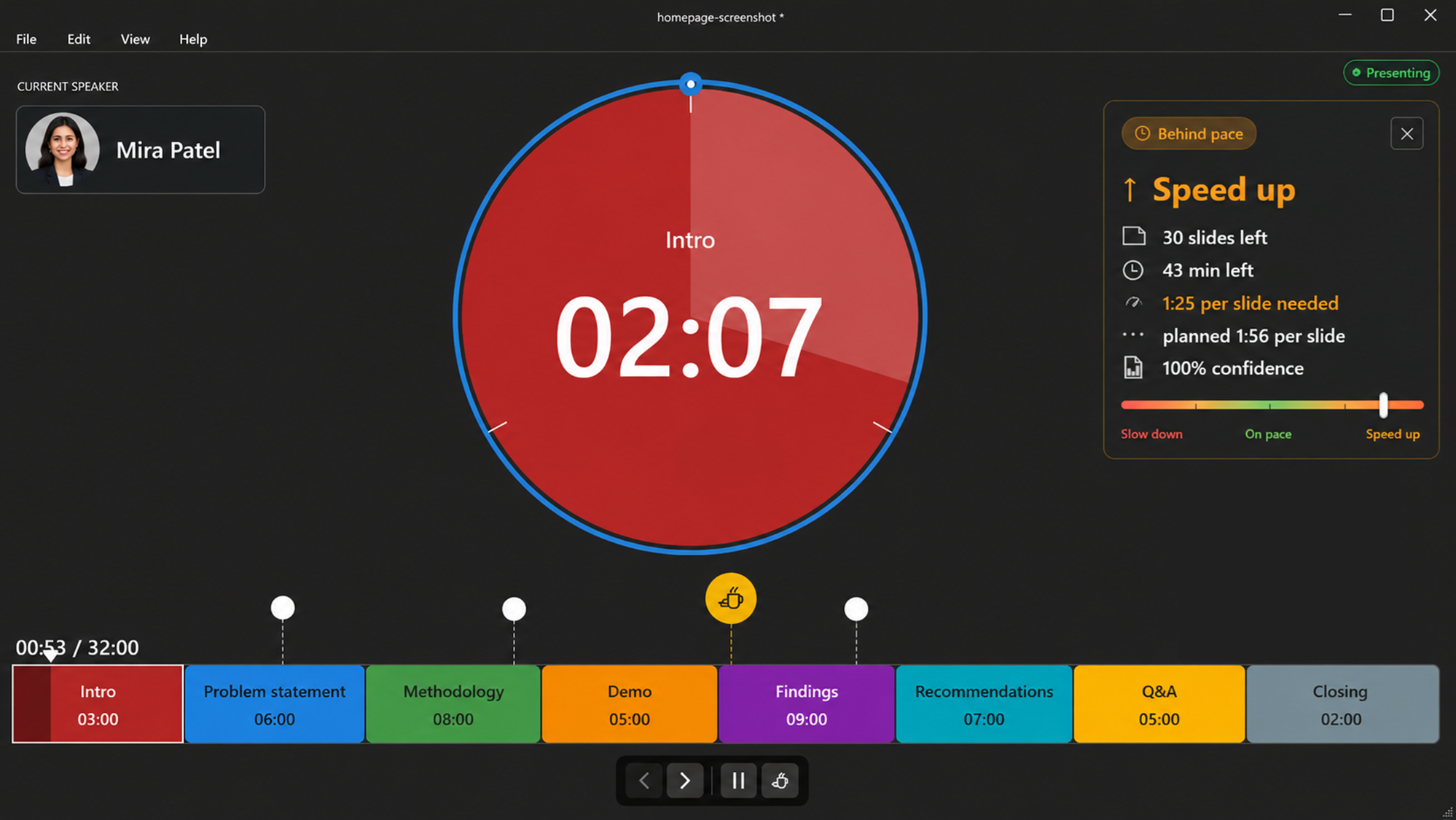

Watch the current section
The timer shows elapsed and remaining time for the current section. With PowerPoint, it follows the slide show; without PowerPoint, it follows the selected section.
Use the live indicators
Speaker changes, callouts, slide maximum time, and break markers appear when they are part of the plan.
Respond to signals
If the timer is shared, co-presenters can ask to pause, speed up, slow down, start a break, or speak. Dismiss signals once you have handled them.
Save the run
Save the timer file after presenting to keep sections, speakers, breaks, imported notes, and completed timing history for the next rehearsal or event.