How to use
Use a PowerPoint timer
Build the timing plan from the deck so Timerinator follows the slide show and PowerPoint stays the system of record.
Break the deck into sections
Use PowerPoint sections for the major parts of the presentation. Timerinator imports each section name, counts only visible slides, and uses the section as the timing structure.
Add timing hints in speaker notes
Put section-level timing tags in the notes of the first visible slide in a section. Use
SECTIONTYPE: Demofor a timed demo block,SECTIONTYPE: QAfor questions and discussion,DURATION:to set the section duration, andMINTIME:to protect a minimum duration when time is redistributed.Mark speaker changes
For multiple presenters, add
SPEAKER:followed by a speaker name or initials as the first non-empty notes line on the slide where that person begins. Speaker tags on hidden slides carry forward to the next visible slide.Add slide annotations
Add
CALLOUT:for a short visible reminder orMAXTIME:for a per-slide time limit. These tags can appear on any notes line; Timerinator uses the first matching tag on each visible slide.Open the deck in Timerinator
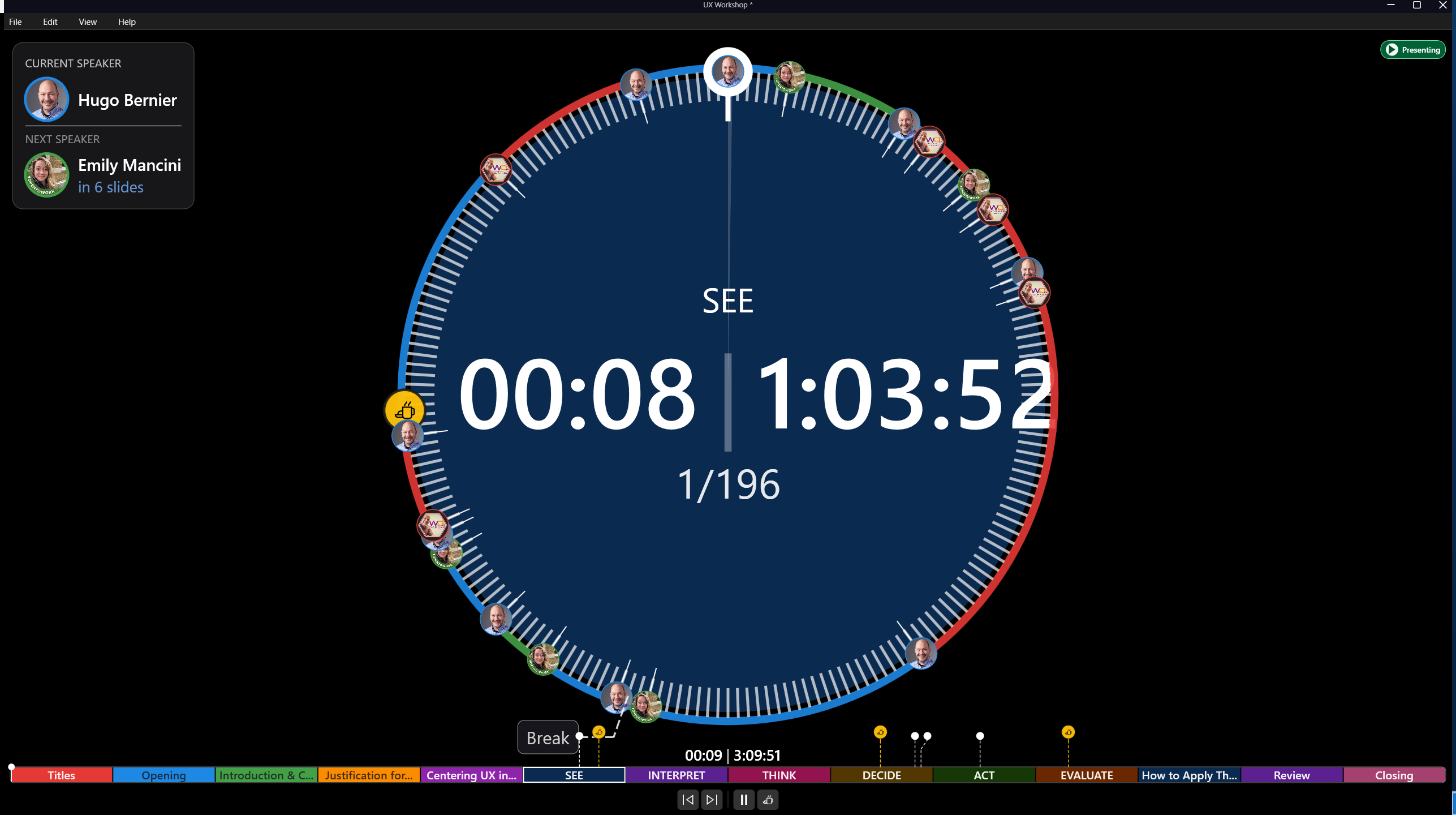
Use the Timerinator desktop app to open the PowerPoint file. Timerinator imports the sections, speakers, colors, note tags, and slide counts.
Review the imported timer
Check the section durations, colors, speakers, demos, Q&A blocks, and breaks. If the deck changes later, refresh from PowerPoint instead of maintaining a separate plan by hand.
Start the slide show
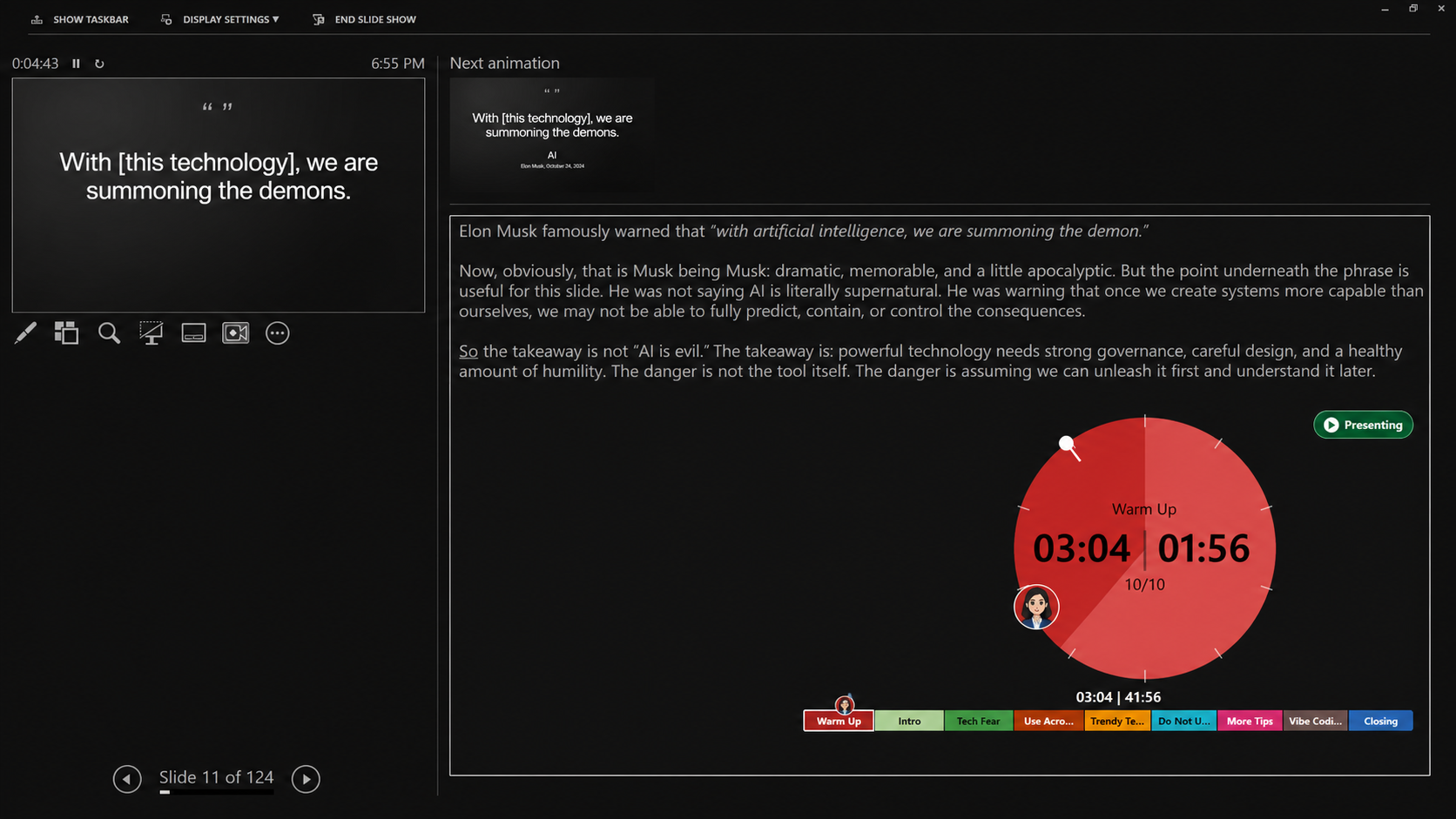
Run the PowerPoint slide show from the presenting computer. Timerinator follows the active slide, current section, speaker, callout, and break state.